

Zoom
Video and audio conference with this easy-to-use, reliable cloud platform that has chat, transcription, and polling functionality.
Available to
Faculty, Staff, Students
Platforms
Mac, Web-Based, Windows
Category
Conferencing
Install Time
~5 minutes
Before You Begin
Zoom Enterprise Student (for students) and Zoom Enterprise Plus (for faculty and staff) are automatically provisioned when the user signs into zoom.wfu.edu.
Installation Instructions
Getting Started with Zoom on Windows
- Download.
- Click Download under Zoom Client for Meetings.
- Locate the downloaded file and double-click to begin installation.
- Click Continue to step through installation process.
- After launching Zoom Select Sign In
- Click SSO once at the login screen.
- Type wakeforest-university into Your company domain.
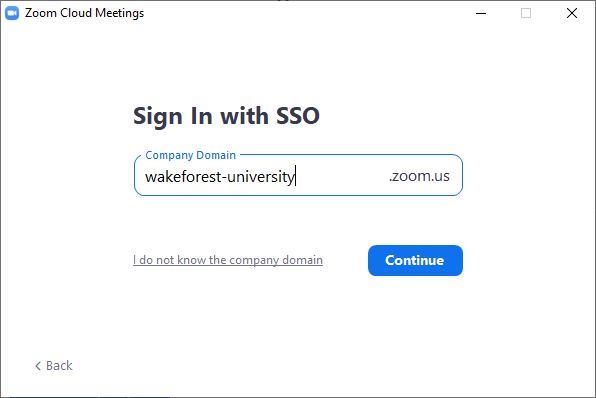
- The Zoom client will open and you are ready to start your meetings.
Getting Started with Zoom on Mac
- Download.
- Click Download under Zoom Client for Meetings.
- Locate the downloaded file and double-click to begin installation.
- Click Continue to step through installation process.
- Click SSO once at the login screen.
- Type wakeforest-university into Your company domain.
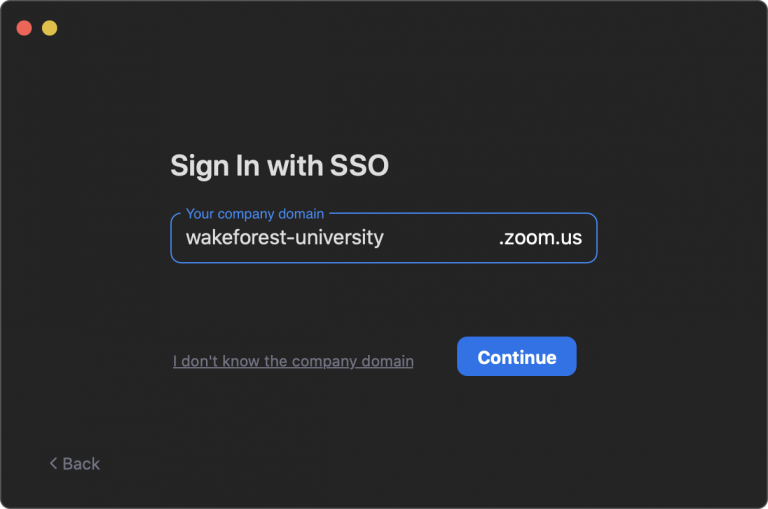
- The Zoom client will open and you are ready to start your meetings.
Add-On
Adding Zoom for Google Workspace Add-on
- Download.
- Click Install.
- Click Continue.
- Click your @wfu.edu Google account.
- Scroll down and click Allow to approve access to your Google account.
- Click Done.
- Go to calendar.google.com or google.wfu.edu and make sure you are logged in with your WFU Google account.
- Click the Zoom icon on the right-hand side.
- Complete any steps required to log in to Zoom.
- When you open a new calendar event window, Zoom is now an option for video conferencing.